

Enabling Custom PL Overlays & Generic-UIO on Kria KR260 with PetaLinux 2025.1
 fpga,
workflow,
kria,
zynq,
petalinux
fpga,
workflow,
kria,
zynq,
petalinux
 KR260
KR260
The Kria SOM board were a game-changer in the FPGA/SOC ecosystem. That a SOC manufacturer decided not only to sell the SOC, but also the SOM that includes it, and a full development kit, was a bold move that paid off. The Kria boards are now widely used in industry and academia for rapid prototyping and development. They weren’t the firsdt manufacturer to sell the microprocessor and also the SOM. Microchip, NVIDIA, and others have been doing it for years, but if I am not wrong, Xilinx/AMD were the first FPGA/SOC manufacturer to do it.
The goal of this product, from my point of view, is to make FPGA/SOC development more accessible, not only for PCB designers but also for software developers, who may not have the hardware design skills or knowledge. This results in a more software-centric approach to FPGA/SOC development, where the hardware design is seen as a complement to the software, rather than the other way around. Evenmore, they seems not to be defined for embedded software developers, but for data scientists and AI developers, who may not have any hardware design skills at all. The KR260 kit (and other K26 kits) is an example of this. The user only has to be concerned about all that runs over de Linux kernel, not even the boot process, and this made that the KR260 boots in a different way that traditional ZynqMP boards, and even other Kria boards.
In this article, we will see how to enable custom PL overlays on the Kria KR260 board using PetaLinux 2025.1, and how to use the generic-uio driver to access custom IPs mapped in the PL. This is a common requirement when working with custom hardware designs, and the Kria ecosystem, and specially newest versions of Petalinux, introduce some challenges that we will address in this guide.
Table of Contents
- PL Overlays in PetaLinux 2025.1
- Creating the Device Tree Overlay & JSON Descriptor
- Creating the Petalinux Image
- Overwriting bootargs with the uEnv.txt file
- Booting PetaLinux and Loading the Overlay
- Check if the new UIO Device is Created
- Accessing the UIO Device
- Conclusions
PL Overlays in PetaLinux 2025.1
If we follow the acceleration flow described by AMD/Xilinx, PL designs are packaged as “applications” that can be loaded and unloaded at runtime using the xmutil tool. In addition to the bitstream, we need to provide a Device Tree Overlay (DTO) that describes the hardware to the Linux kernel, and also a JSON descriptor for the tool. All these three files must be placed in a specific folder structure under /lib/firmware/xilinx/<application_name>.
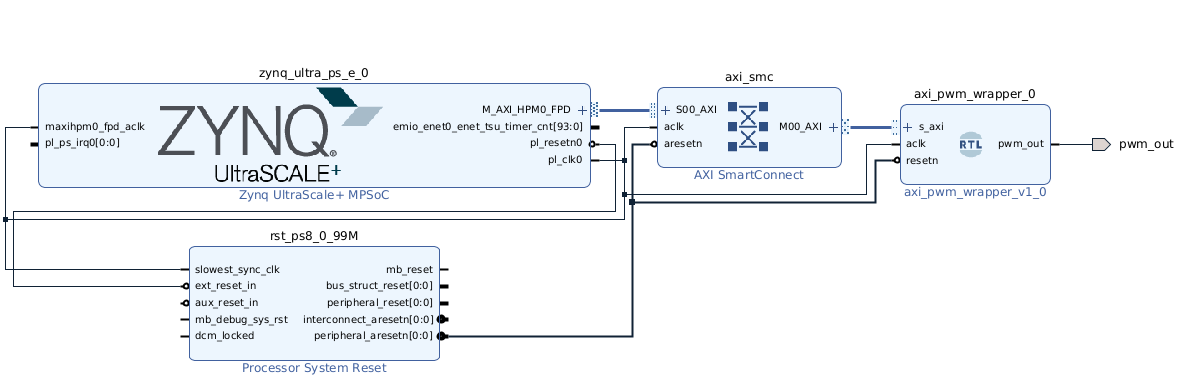
To follow this flow, we need first, to create the hardware design in Vivado. For this example, we will create a simple AXI4-Lite peripheral (for example, an AXI PWM IP core). On this Vivado design, we will need to add the Processing System IP block to generate the necessary clocks and resets, and connect them to the AXI peripheral. Once the design is ready, since we are not going to inlude this hardware description to the Petalinux build, but we will load it as an overlay, we will need besides the bitstream, to generate the .bin file. In older versions of Petalinux, the binary file was generated by checking the correponding option in the Vivado project settings, but in the newest versions of Petalinux, we need to use bootgen to generate the <application_name>.bin file from the .bit file.
We can either use the Vivado GUI or the command line:
write_cfgmem  -format bin
              -size 32
              -interface SMAPx32
              -loadbit {up 0x00000000 "<bit_file>" }
              -force
              -disablebitswap
              -file "<output_bin_file>"
Notice the the -disablebitswap flag is necessary to generate a compatible binary.
Creating the Device Tree Overlay & JSON Descriptor
Once we have the binary file, we need to create the Device Tree Overlay (DTO) that describes our custom IP. This DTO must include at least the register address of the peripheral, driver used to access it, and also can be neccessary to include clock references to avoid the Linux Power Management subsystem to disable the clocks. This last point can be unnecessary if we enable all the clocks in the kernel command line using the clk_ignore_unused flag.
It is important to note that the DTO must be compiled into a .dtbo file using the dtc tool. We will see this later.
Creating the dts file needed to, later, compile the dtbo is very straightforward. Below is an example of a minimal DTO for an AXI PWM peripheral mapped at address 0xa0000000:
/dts-v1/;
/plugin/;

/ {
    fragment@0 {
        target-path = "/amba_pl";

        __overlay__ {

            axi_pwm_0: axi-pwm@a0000000 {
                compatible = "generic-uio";
                status = "okay";

                /* reg = <addr_hi addr_lo size> */
                reg = <0x0 0xa0000000 0x0 0x00010000>; /* 64 KiB */

                uio-name = "axi_pwm_0";
            };
        };
    };
};
Some important points of this file:
-
The
target-pathmust point to the AXI bus where the peripheral is mapped. In Kria KR260, this is usually/amba_pl, but for example, if we are running Ubuntu on the board, this path changes to/amba. This can be verified by checking thesystem-top.dtsfile located in the PetaLinux project underproject-spec/meta-user/recipes-bsp/device-tree/files/, and fi9nding the node that corresponds to the AXI bus. -
The
regproperty must be in 64-bit format, meaning that both the address and size must be specified using two 32-bit values. This can also be checked in thesystem-top.dtsfile by looking to the#address-cellsand#size-cellsproperties of the target bus. A configured value of ‘1’ means 32-bit format, while a value of ‘2’ means 64-bit format. -
The
compatibleproperty must be set in order to tell the kernel which driver to use. In this case, we are using thegeneric-uiodriver. We will see later why we are using this driver and how to instruct the kernel to bind this driver to our peripheral in Petalinux 2025.1
Finally, we need to create a JSON descriptor file named shell.json that indicates to xmutil how to handle the overlay. A minimal example looks like this:
{
  "shell_type":"XRT_FLAT",
  "num_slots": "1",
 	"dtbo_filename": "<overlay_name>.dtbo" ,
  "bitstream_filename": "<application_name>.bin"
}
Once we have these three files: <application_name>.bin, <overlay_name>.dtbo, and shell.json, we will place them into the folder /lib/firmware/xilinx/<application_name>/ in the Kria board in order to be able to load them using xmutil.
Creating the Petalinux Image
Even I this step is located after the creation of the hardware design, usually we will have already a system running in the Kria board, and we just need to update the hardware design in order to test something, or just apply and update to the existing system. However, there are some steps that we need to take into account when creating the PetaLinux image in order to be able to use the generic-uio driver with our custom IP.
In first place, there are not a generic-uio driver in the default PetaLinux configuration, and the bad news is that it doesn’t exist. However, the good news is that the uio_pdrv_genirq driver is included, and this driver can be configured to bind to devices with the compatible = "generic-uio" string by passing a kernel argument during boot. And here is where I want to introduce you the bootargs.
Bootargs are kernel arguments, or instructions, that are passed during boot time in order to configure the kernel behavior. This instructions can set the location of the root filesystem, console settings, memory allocation, and also driver configurations.
In the Petalinux build process can be defined in two different ways. The first one is by modifying the project-spec/meta-user/recipes-bsp/device-tree/files/system-user.dtsi file, adding a node named chosen with a property named bootargs, like this:
/include/ "system-conf.dtsi"
/ {
    chosen {
        bootargs = "<default bootargs of KR260> uio_pdrv_genirq.of_id=generic-uio clk_ignore_unused";
    };
};
Or by using the petalinux-config tool:
petalinux-config
And then navigating to DT settings > Kernel bootargs > Add extra args bootargs, and adding the necessary flags:
uio_pdrv_genirq.of_id=generic-uio clk_ignore_unused
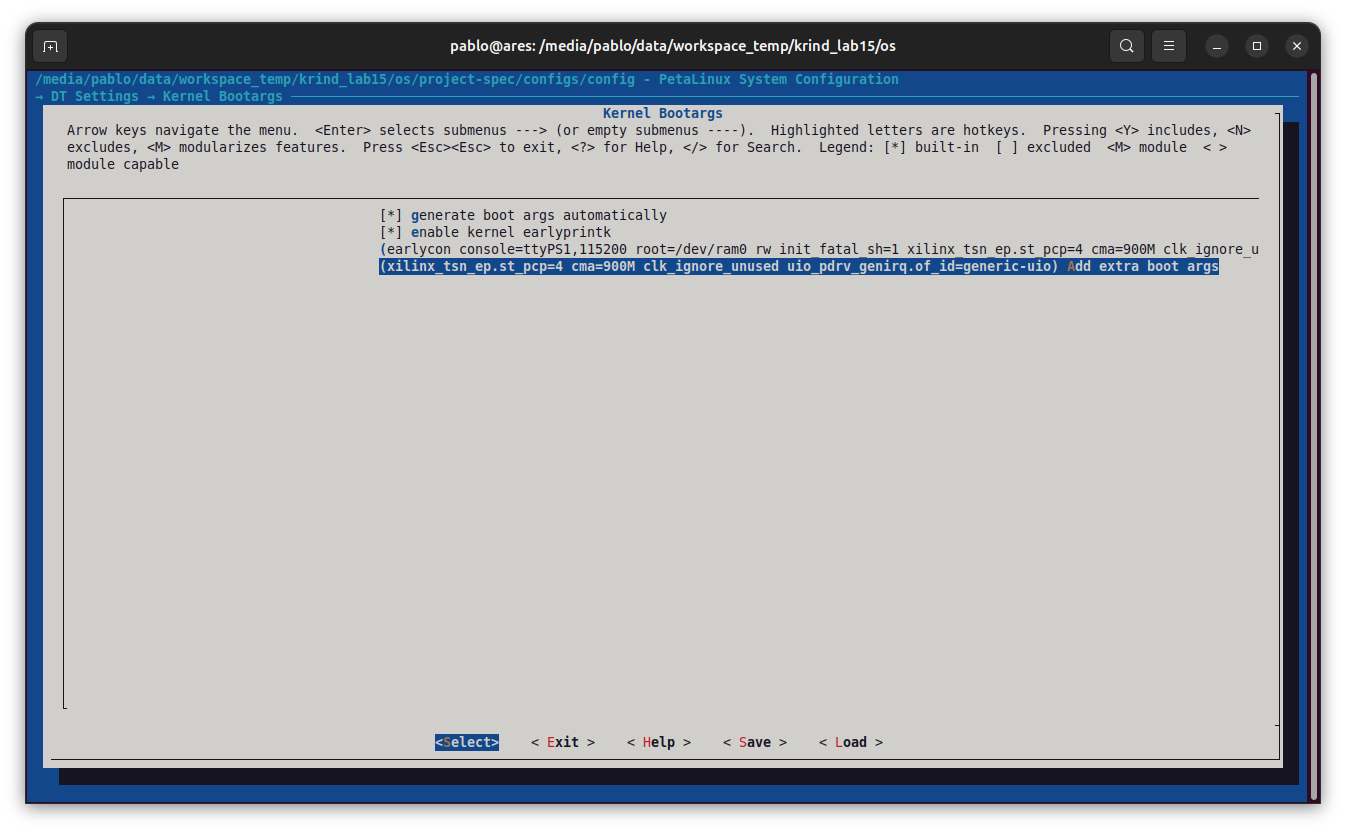
let’s take a look closer to this new flags:
-
uio_pdrv_genirq.of_id=generic-uio: This flag tells the kernel that, in case of there is a device with the compatible string “generic-uio”, it should use theuio_pdrv_genirqdriver. -
clk_ignore_unused: Prevents the kernel from turning off clocks it thinks are unused. Important since petalinux will only enable the clocks enabled in the defalt Petalinux build, and if our custom IP needs a clock that is not enabled, the kernel will turn it off, and accessing the IP registers will hang the system.
As I mentioned, these bootargs are passed to the kernel during the boot process, so they are not included in the kernel image itself, but in the BOOT.BIN file. And here is where thigns turned dark, at leats for me, when you are working with Petalinux 2025.1 + KR260 combo.
The key is that, in the KR260 board, the boot mode is set to QSPI. That is the reason why we change the Petalinux version, we need to update the BOOT.BIN in the FLASH memory by booting with the FWUEN button pressed, and updating the QSPI with the new BOOT.BIN (do you remember that the bootargs are inside the BOOT.BIN?).
From this moment, all the Petalinux builds won’t use the BOOT.BIN generated during the build process, but the one stored in the QSPI flash memory. This means that if we want to change the bootargs, we need to modify the BOOT.BIN in the QSPI memory.
In last place, we need to add the uio_pdrv_genirq driver to the kernel configuration, in case it is not included in the PetaLinux 2025.1 configuration for KR260. We can either use the petalinux-config tool:
petalinux-config -c kernel
And then navigating to Device Drivers > UIO drivers > Generic Usermode IO driver support, and enabling it
Or directly modifying/creating the kernel configuration file located in project-spec/meta-user/recipes-kernel/linux/linux-xlnx/user.cfg, adding the following line:
CONFIG_UIO_PDRV_GENIRQ=y
And then, adding it to the build by adding SRC_URI:append = " file://user.cfg" to the project-spec/meta-user/recipes-kernel/linux/linux-xlnx/linux-xlnx_%.bbappend file:
FILESEXTRAPATHS:prepend := "${THISDIR}/${PN}:"

SRC_URI:append = " file://bsp.cfg"
SRC_URI:append = " file://user.cfg"
After these steps, we can build the PetaLinux image as usual:
petalinux-build
Overwriting bootargs with the uEnv.txt file
Sometimes, we need to test different bootargs without rebuilding the entire PetaLinux image and updating the QSPI flash memory. For this, we can use the uEnv.txt file. This file can be created when it is needed, and has to be located in the BOOT partition of the SD card.
This file is read during the boot process, and if it exists, the bootargs defined in this file will overwrite the ones in the BOOT.BIN file. This is very useful for testing purposes.
The structure of the uEnv.txt file is very simple. We just need to create a file named uEnv.txt in the BOOT partition of the SD card, and add the following line:
bootargs=uio_pdrv_genirq.of_id=generic-uio clk_ignore_unused
Booting PetaLinux and Loading the Overlay
Once we have the PetaLinux image built and the BOOT.BIN updated in the QSPI flash memory (if needed), we can boot the Kria board with the SD card containing the root filesystem.
After booting, we can check if the bootargs are correctly set by checking the /proc/cmdline file:
xilinx-kr260-starterkit-20251:~$ cat /proc/cmdline
earlycon console=ttyPS1,115200 clk_ignore_unused root=/dev/mmcblk1p2 rw rootwait uio_pdrv_genirq.of_id=generic-uio cma=1000M cpuidle.off=1
Next, we need to compile the dts file into a dtbo file using the dtc tool:
xilinx-kr260-starterkit-20251:~$ dtc -@ -I dts -O dtb -o axi_pwm.dtbo axi_pwm.dts
axi_pwm.dts:15.17-55: Warning (reg_format): /fragment@0/__overlay__/axi-pwm@a0000000:reg: property has invalid length (16 bytes) (#address-cells == 2, #size-cells == 1)
axi_pwm.dtbo: Warning (pci_device_reg): Failed prerequisite 'reg_format'
axi_pwm.dtbo: Warning (pci_device_bus_num): Failed prerequisite 'reg_format'
axi_pwm.dtbo: Warning (simple_bus_reg): Failed prerequisite 'reg_format'
axi_pwm.dtbo: Warning (i2c_bus_reg): Failed prerequisite 'reg_format'
axi_pwm.dtbo: Warning (spi_bus_reg): Failed prerequisite 'reg_format'
axi_pwm.dts:10.41-18.15: Warning (avoid_default_addr_size): /fragment@0/__overlay__/axi-pwm@a0000000: Relying on default #address-cells value
axi_pwm.dts:10.41-18.15: Warning (avoid_default_addr_size): /fragment@0/__overlay__/axi-pwm@a0000000: Relying on default #size-cells value
axi_pwm.dtbo: Warning (avoid_unnecessary_addr_size): Failed prerequisite 'avoid_default_addr_size'
axi_pwm.dtbo: Warning (unique_unit_address): Failed prerequisite 'avoid_default_addr_size'
This step will generate the compiled axi_pwm.dtbo file.
Now, we have two different ways to load the overlay. The first one is by using the xmutil tool, and the second one is by using the fpgautil tool.
Loading the Overlay with xmutil
To load the overlay with xmutil, first we need to create a new application by creating a new folder in the /lib/firmware/xilinx/ directory with the name of the application, and copying the three files: <application_name>.bin, <overlay_name>.dtbo, and shell.json into this folder.
Then, we can check that the application is detected by xmutil:
xilinx-kr260-starterkit-20251:~$ xmutil listapps
Since the KR260 when boots loads a default application, we need to unload it first:
xilinx-kr260-starterkit-20251:~$ sudo xmutil unloadapp
Finally, we can load the new application:
xilinx-kr260-starterkit-20251:~$ sudo xmutil loadapp <application_name>
Loading the Overlay with fpgautil
To load the overlay with fpgautil, we just need to use the following commands to load the bitstream:
xilinx-kr260-starterkit-20251:~$ sudo fpgautil -b <application_name>.bin
And then, load the overlay using the dtbo file:
xilinx-kr260-starterkit-20251:~$ sudo fpgautil -o <overlay_name>.dtbo
Check if the new UIO Device is Created
After loading the application, we can check if the new UIO device is created by running the following command:
xilinx-kr260-starterkit-20251:~$ ls /dev/uio*
/dev/uio0
/dev/uio1
/dev/uio2
/dev/uio3
/dev/uio4
Notice that the number of UIO devices may vary depending on the number of UIO devices already present in the system. In the case of the KR260, by default it includes 4 UIO devices for the TSN peripherals, so the our custom IP will be mapped to /dev/uio4.
To verify that the uio4 device corresponds to our custom IP, we can check the name property of the UIO device:
xilinx-kr260-starterkit-20251:~$ cat /sys/class/uio/uio4/name
axi_pwm_0
And also, that the address matches the one defined in the DTO:
xilinx-kr260-starterkit-20251:~$ cat /sys/class/uio/uio4/maps/map0/addr
a0000000
Accessing the UIO Device
Now that we have verified that the UIO device is created, we can access it using the mmap function in a C program or using the devmem tool from the command line. For example, to write a value to the first register of the AXI PWM peripheral, we can use the following command:
xilinx-kr260-starterkit-20251:~$ sudo devmem 0xa0000000 32 1000
To read the value back, we can use:
xilinx-kr260-starterkit-20251:~$ sudo devmem 0xa0000000 32
Conclusions
Working with custom PL overlays is what makes the difference when using SOCs that combines a processor with an FPGA fabric. While the peripherals are fixed in processors, the FPGA fabric allows us to create custom peripherals that can be loaded and unloaded at runtime, providing great flexibility.
The KR260 board, and the Kria ecosystem in general are great for rapid prototyping and development, but the new application loading model requires some adaptation when trying to use standard drivers like generic-uio.
I has been noticed since its release that AMD/Xilinx is turning to a very software-centric. And I am including myself in this statement. if you take a look to m lasts articles, most of them are focused in software aspects, leaving the hardware design as a complement to make this software better. For the next year, I am planning to write more articles focused in hardware design, leaving the software side as a complement, at least I will try it. I have planned articles about 2.5G and 10G interfaces, hardware accelerators for cryptography, more implementations of FPGA electrical models and virtual instrumentation, and more.
But that will be for the second article of 2026. The first one will probably be the most clickbait-y article I’ve ever written: using AI in PetaLinux running on an Arty board. You have been warned.
See you in 2026!